
The Call Booking screen is the primary place to book jobs, as well as create and maintain customer and location records. NOTE: Do not search customer accounts in this screen.

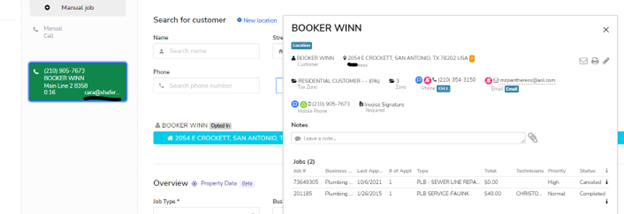
A green bubble will appear when a customer calls. Click on the bubble to take ownership of the call, and the customer’s profile will appear. Verify the customer’s address and name immediately.
A) Select the business unit customer is requesting. We will utilize HVAC – Residential Install, HVAC – Residential Service and Plumbing – Service ONLY on this screen.
(Procedures for HVAC – Residential Install will be on another page)
B) Select Job Type (Refer to the Job type page for options)
C) Select the Marketing Campaigns used will be
- 01 Existing Customer
- 02 Steve’s Plumbing
- 03 Watson Air
- 04 Barrett & Son’s
- Google Pool (If a customer googled us)
D) Select Get Availability for Capacity.
Capacity will show next availability for booking. Select the time window customer approves and then Select Window. Once you press Select Window it withhold another CRS from getting that time spot (percentage wise). You can always go back to this screen and choose a different opening.

E) In Gate Code slot enter N/A. When confirming the call, we will ask if there is a gate code needed. If the customer provides the gate code # during the call, you can place info here and in summary notes.
F) Do not select a Technician for booking.
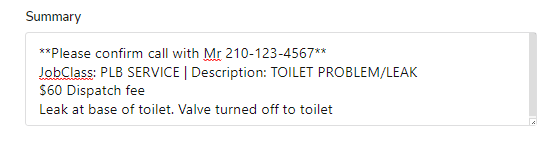
G) Summary
- There will be an auto populated description of job when selecting Job Type.
- Below the summary for non -members you will put the money ($60 Dispatch Fee, ect)
- Below the money section you will provide an explanation of the issue customer is describing.
- For all special instruction customer ask put at the very top of summary to alert the service managers or other CSR’s.
**Special Instruction**
Auto populated Job Description
Dispatch Fee (Member have $0 Dispatch fee. Distinguish if there is a fee or they are a member )
Explanation of Problem and Location
H) Tags
Auto populated tags: Member, Potential Member, Steve’s Plumbing, Watson & Barrett & Son’s. All other tags will need to be select based off the customer’s needs.
- Camera Needed (Primarily in plumbing when a customer is requesting a camera inspection. This alerts the technician to bring a camera when going out to customer )
- Customer Requesting Phone Call (only on special circumstances approved by manager)
- Do Not Service (only on special circumstances approved by manager)
- Dog (Any special instructions or names of dogs)
- Dual Jobs Booked (This must be used when booking HVAC & Plumbing job on same day. Notes at top of job summary will be added “HVAC appointment same day”
- Flexible Timing (To alert the Service Managers customer is available all day of booked appointment)
- Gate Code (When there is a Gate Code Needed)
- High Value Job (Preferably used in HVAC when a unit is over 12 years old)
- Ladder Required (Customer will inform or you will see in profile if a ladder is needed. Notate at top of Job Description)
- New Customer (When this is the first time Shafer is servicing customer)
- No Hot Water (Used in plumbing when customer is without hot water)
- Parts Needed (Used when customer is requesting a filter in HVAC. Otherwise Service Mangers will use this tag from there on)
- Preferred Tech (When a customer is requesting a particular technician. Notate at top of summary tech preferred. Ex: *John Preferred*
- Rescheduled (When the office has rescheduled the customer. Notations will be put at top of summary Ex: **Office reset SET 12/10 @ 8-10am** )
- Spanish Only
- Time – Hard Set Time Frame (When a customer is only available within a certain timeframe. Notate at top of summary of that set time)
- Water Off (Primarily for plumbing when the water has been shut off to home. This will also de notated in the scription of problem)
- White Glove (This tag alerts all employees to take caution and be on best behavior with customer)